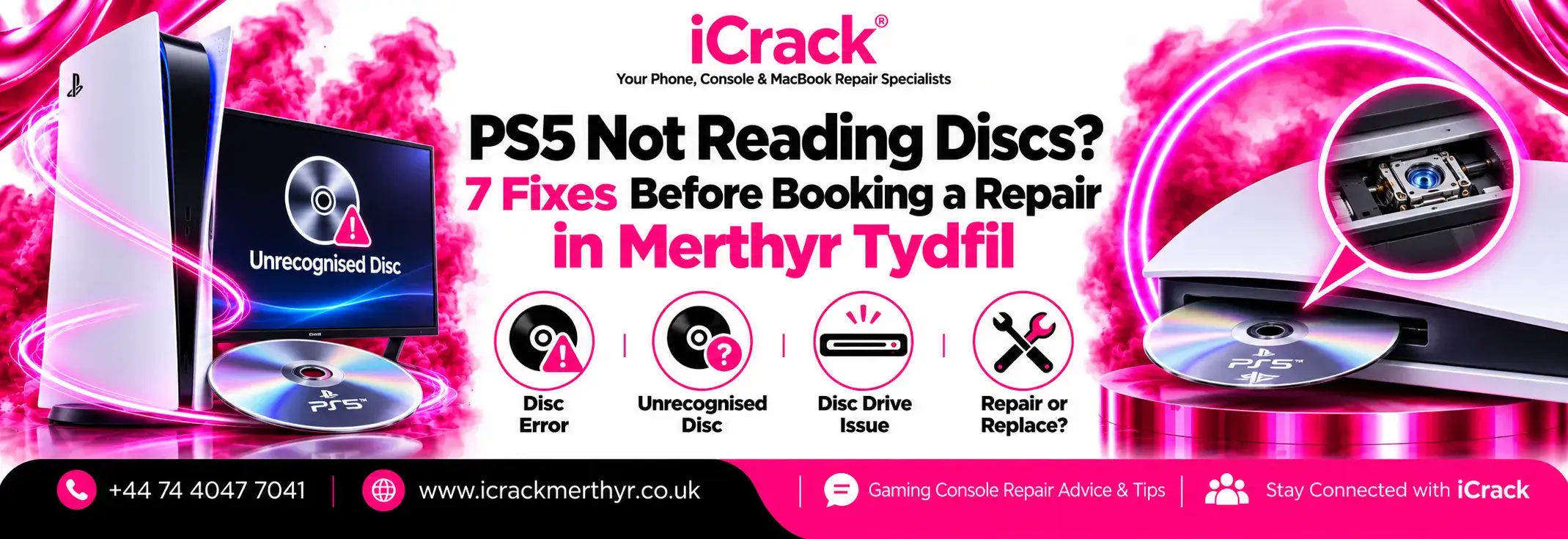
You’ve finally found time for a gaming session, slipped your favourite disc into the PlayStation 5, and instead of loading, the screen says “Unrecognised Disc.” Perhaps the console makes a strange clicking noise, refuses to accept the disc, or ejects it straight away.
It’s annoying, especially when your other games are sitting on the shelf ready to play. But a faulty disc drive isn’t always the explanation. Before paying for a PS5 repair in Merthyr Tydfil, try these seven checks.
1. Make Sure the Disc Is Inserted Correctly
This mistake is more common than you might expect, particularly if you’ve recently moved your PS5 from a horizontal to a vertical position.
On a standard PS5 standing upright, with the disc slot on the lower right, the printed label should face left. Don’t force the disc into the slot. Eject it carefully, check its orientation, and try again.
2. Clean the Game Disc Properly
Fingerprints, dust and smudges can interfere with reading. Hold the disc by its edges and inspect the shiny surface under a light.
Use a soft, clean, lint-free cloth and wipe gently from the centre towards the outside edge. Avoid harsh cleaning chemicals and circular scrubbing. Deep scratches or cracks may mean the disc itself is damaged.
3. Try Another Disc
One of the quickest ways to narrow down the problem is to test a second game you know works.
If the other disc loads normally, your original game disc may be the issue. If several clean PS5 games and supported PS4 discs fail, the console deserves closer attention.
Remember, PS5 consoles cannot play PS3 game discs, audio CDs or burned discs, so use compatible media for this test.
4. Restart Your Console and Update Its Software
Sometimes a temporary system error stops a game from loading correctly.
Completely switch off the PS5, wait briefly, then turn it back on. Check Settings > System > System Software > System Software Update and Settings for available updates.
Only install updates provided through PlayStation’s official system. If the drive is grinding, clicking harshly or trapping discs, stop testing rather than repeatedly inserting games.
5. Clear the Cache and Rebuild the Database
If the discs look fine, Sony recommends trying the PS5’s Safe Mode options.
Turn the console off fully, then hold the power button until you hear the second beep. Connect your controller by USB and select Clear Cache and Rebuild Database. Start with the appropriate cache-clearing or database-rebuild option.
Rebuilding the database is different from resetting the console. Avoid choosing “Reset PS5 (Reinstall System Software)” casually: that option deletes information stored on the console. Back up important saved data before considering any destructive step.
6. Check a Detachable Disc Drive
Have you got a PS5 Slim or PS5 Pro with a detachable disc drive? These models have an additional possibility: the drive may not have completed its required setup.
A compatible detachable drive needs an internet connection during pairing. If you recently fitted one and the console won’t recognise it, follow Sony’s official setup instructions and check the connection before assuming the hardware has failed.
The original disc-edition PS5 uses a different drive arrangement, so repairs aren’t identical across models.
7. Recognise When It Needs Professional Repair
If multiple clean, compatible discs fail after the software checks, the problem could involve the laser, loading mechanism or drive electronics.
Grinding noises, discs getting stuck and repeated ejection are also reasons to stop troubleshooting at home. Never pull a stuck disc out by force or attempt to open internal drive components without suitable experience.
A proper diagnosis can help avoid replacing parts unnecessarily.
PS5 Disc Drive Repair in Merthyr Tydfil
At iCrack Merthyr, we help customers with PlayStation disc drive faults, HDMI problems, overheating and other gaming console issues. Whether your PS5 displays an unrecognised disc message or struggles to load games, our team can assess the problem and explain the available repair options.
Visit iCrack Merthyr at 5 Graham Way, St Tydfil Shopping Centre, Merthyr Tydfil CF47 8EG, or call +44 74 4047 7041 to discuss your console.
Before spending money on another PlayStation, find out whether your existing PS5 can be repaired. A straightforward check could save you an unnecessary replacement.