
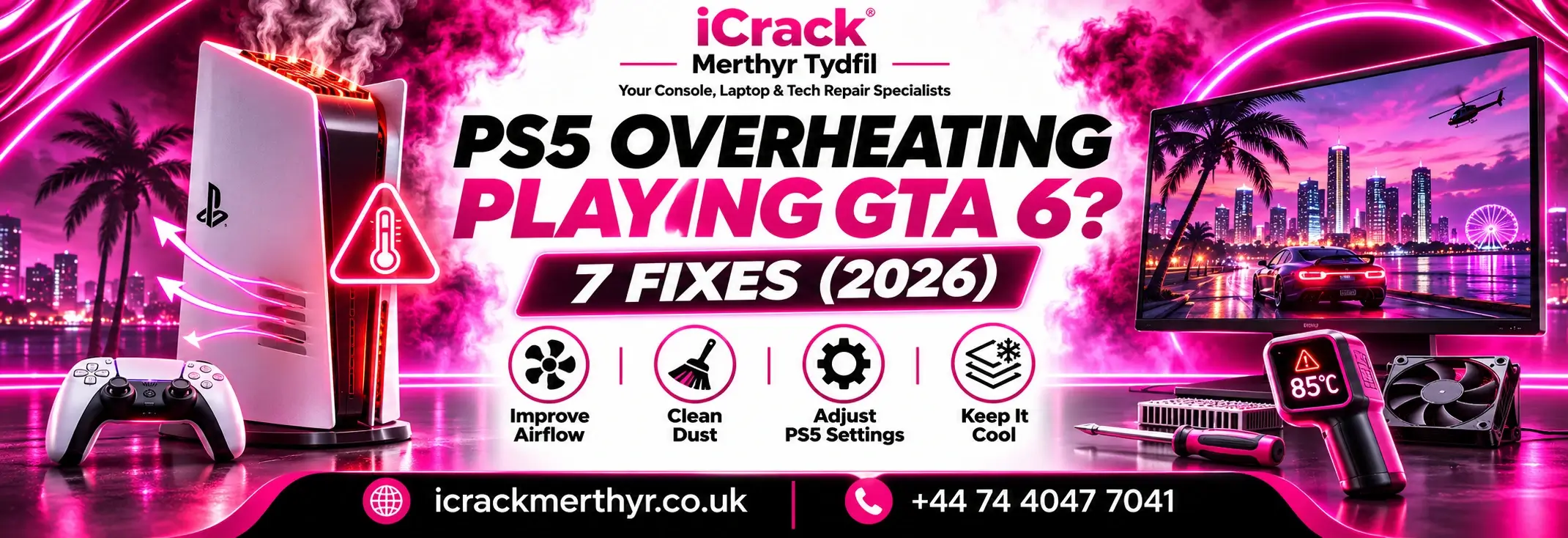
GTA 6 has finally arrived, and PlayStation 5 owners are exploring Rockstar Games’ latest open-world adventure. But imagine being halfway through a mission when your PS5 suddenly becomes unusually loud, displays a temperature warning or shuts down completely.
It’s the last thing you want during a gaming session.
If your PS5 is overheating while playing GTA 6, don’t assume the console needs replacing. Several common cooling problems can be checked at home before paying for professional repairs.
Here’s what to look for and seven practical fixes worth trying.
Why Does My PS5 Overheat While Playing GTA 6?
GTA 6 features a detailed open world that can place sustained demands on your console’s hardware. During demanding gameplay, the PS5 generates heat and uses its cooling fan to maintain safe operating temperatures.
A louder fan doesn’t automatically mean something is wrong.
However, repeated temperature warnings, unexpected shutdowns or excessive heat may indicate restricted airflow, dust accumulation or a cooling-system fault.
Importantly, these problems aren’t necessarily caused by GTA 6 itself.
1. Give Your PS5 Enough Ventilation
One of the easiest fixes is improving airflow around your console.
If your PS5 sits inside a tightly enclosed TV cabinet or directly against a wall, warm air may become trapped around it.
Sony recommends leaving at least 10 cm of free space around the console’s ventilation openings.
Move your PS5 into an open, well-ventilated area and make sure nothing blocks the vents.
Avoid placing it on thick carpets, blankets or other surfaces that restrict airflow.
2. Clean Dust From the PS5 Vents
Over time, dust can accumulate around the PS5’s air vents and reduce cooling efficiency.
Before cleaning, completely switch off the console, unplug its power cable and allow it to cool.
Use a low-powered vacuum carefully around accessible ventilation openings, following Sony’s cleaning recommendations.
Avoid inserting tools into the console or attempting internal repairs without the appropriate experience.
If significant dust has built up inside the cooling system, professional cleaning may be appropriate.
3. Let Your PS5 Cool Down
If your console displays an overheating warning, stop playing immediately.
Switch off your PS5 and allow it to cool in a ventilated area.
Don’t restart GTA 6 repeatedly while the console is displaying temperature warnings.
Once it has cooled, check its surroundings and ventilation before using it again.
If the warning returns, further investigation is necessary.
4. Check for GTA 6 and PS5 Updates
Not every crash or shutdown is caused by overheating.
Software problems can sometimes produce similar symptoms, including freezing, unexpected game closures or system errors.
Check for available GTA 6 updates from the game’s options menu.
Then open:
Settings → System → System Software → System Software Update and Settings
Install any available PlayStation system software updates.
Software updates may resolve stability issues, but they cannot repair a defective fan or damaged internal components.
5. Check Your PS5’s Cooling Fan
Your PS5 fan may become louder during demanding games, and this can be normal.
However, grinding, rattling or unusually harsh mechanical sounds deserve attention.
If the fan appears to be struggling, the cooling system may require inspection.
Avoid attempting to lubricate the fan or dismantle the console without suitable tools and knowledge.
At iCrack Merthyr, our technicians can inspect cooling-related faults through our gaming console repair services.
6. Test Whether Other Games Cause Overheating
Try another game that you regularly play and compare your console’s behaviour.
If your PS5 also overheats or shuts down during other demanding games, the problem may involve the console rather than GTA 6.
If the issue only happens with GTA 6, investigate game updates and software troubleshooting before assuming hardware failure.
Pay attention to whether the console displays a temperature warning or simply closes the game.
These symptoms can help technicians identify the likely cause.
7. Book a Professional PS5 Cooling-System Inspection
If you’ve improved airflow, cleaned accessible vents and checked software updates but the console continues overheating, it may need professional attention.
Possible causes include excessive internal dust, cooling-fan problems or other hardware faults.
A technician can examine the console and recommend suitable repairs.
Check your manufacturer or retailer warranty before arranging third-party repairs, particularly if your PS5 is relatively new.
When Should You Stop Using an Overheating PS5?
Stop using the console if it repeatedly displays temperature warnings, switches off unexpectedly or produces unusual mechanical noises.
Never ignore a burning smell, smoke or visible electrical damage. Disconnect power when safe and arrange professional inspection.
Continuing to use a faulty console could make an existing problem worse.
PS5 Overheating Repair in Merthyr Tydfil
At iCrack Merthyr, we help local gamers with PlayStation hardware faults, including cooling issues, noisy fans, HDMI problems and disc-drive faults.
Whether your PS5 struggles during GTA 6 or other games, our technicians can inspect the problem and explain the available repair options.
You can also read our PS5 disc-reading troubleshooting guide for help with physical game discs.
Visit iCrack Merthyr, 5 Graham Way, St Tydfil Shopping Centre, Merthyr Tydfil CF47 8EG.
Call +44 74 4047 7041 or visit iCrack Merthyr to request a repair quote.
Before replacing your PS5, find out whether a professional repair could get you back to gaming.